firefly-video
How to Turn a Product Photo Into an AI Video Ad With Adobe Firefly
Static product photos have a hard job on modern social feeds.
Whether someone is scrolling through Instagram Reels, TikTok, or YouTube Shorts, a still image on a plain white background rarely stops a thumb mid-swipe. At the same time, booking a studio, rigging motorized sliders, and hiring a crew for a ten-second product commercial can easily eat up an entire campaign budget.
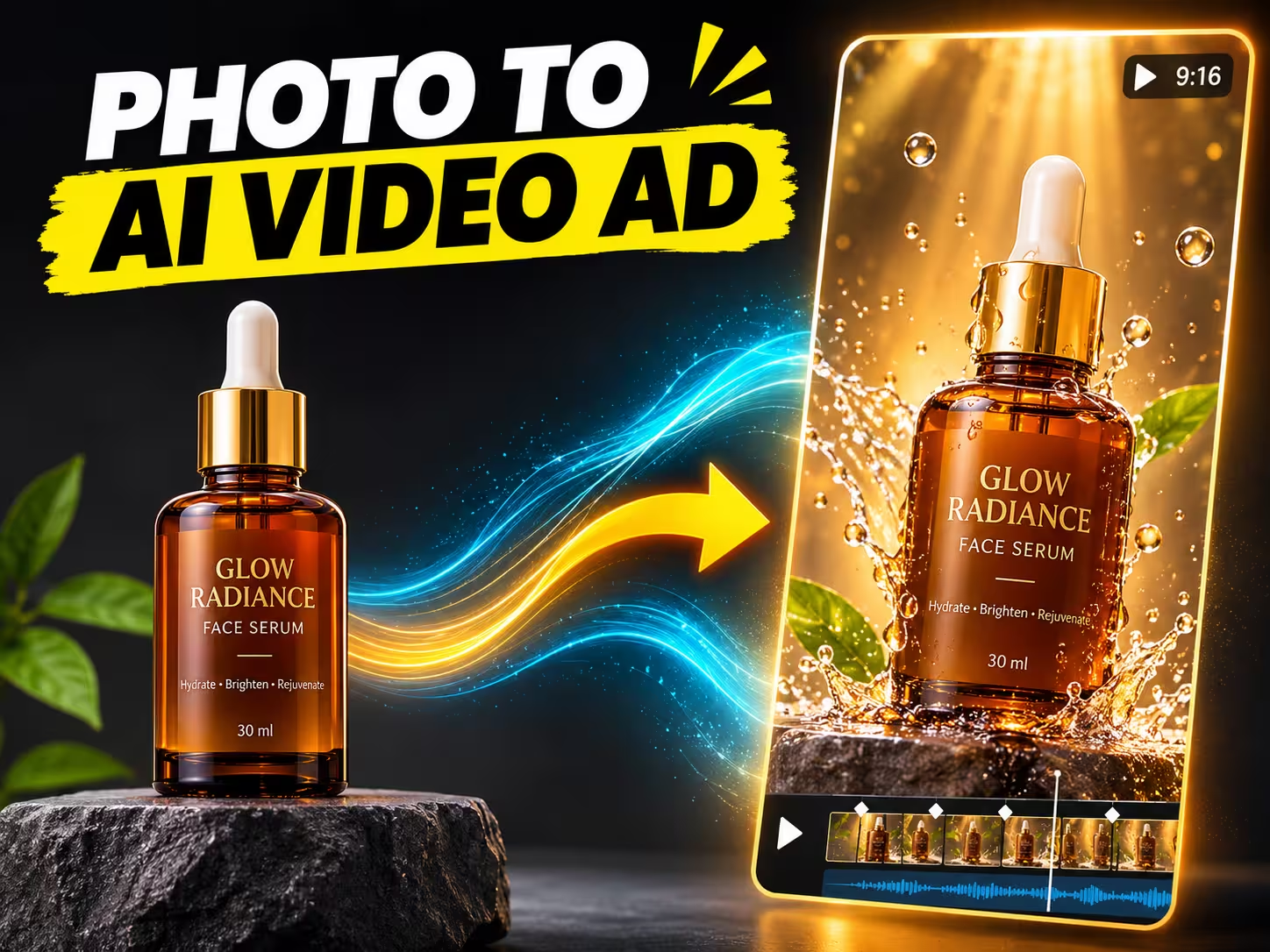
That gap is exactly where Adobe Firefly's Image-to-Video workflow shines. Instead of generating random, hallucinated products from scratch, you can upload an existing, high-resolution photograph of your actual product and direct Firefly to animate the camera, lighting, and surrounding environment around it. Even better, you can build the soundtrack, sound effects, voiceover, and final multi-track edit without ever leaving Adobe's ecosystem.
Some of our links may be affiliate links and if you buy through our link, we might generate some commissions.
Discover Adobe's suite of products.
Why Use Adobe Firefly for Commercial Product Ads?
Before jumping into the steps, it helps to understand what separates Firefly from standalone AI video generators when you are running paid ads or client campaigns:
Built for Commercial Safety: Content generated using the native Adobe Firefly Video Model is designed to be commercially safe, giving brands and agencies peace of mind when running paid media.
Multi-Model Flexibility in One Hub: Firefly Video is the default engine, but the workspace also acts as a multi-model hub where you can switch to partner models like Google Veo or Runway when you want to test different motion styles or generation speeds. (Just note that partner models carry their own credit rates and commercial-use terms.)
End-to-End Ad Production: Most AI video tools hand you a silent five-second MP4 and leave you on your own. Firefly pairs video generation with Generate Soundtrack, Generate Sound Effects, Text to Speech, and the browser-based Firefly Video Editor, plus direct handoffs to Adobe Express and Premiere Pro.
Step 1: Prep Your Source Product Photo (The Make-or-Break Step)
AI video models predict motion based on the pixels you feed them. If you upload a blurry, dimly lit smartphone snapshot with clutter in the background, Firefly will amplify those flaws and warp your product's packaging.
To get clean, agency-grade results, follow these prep rules before opening the video generator:
Start at 1080p or Higher: Use a crisp, high-resolution product photo with sharp focus on the label and edges.
Keep the Silhouette Clean: Busy backgrounds confuse motion prediction. A product with a clear silhouette against an uncluttered surface produces noticeably smoother camera movement.
Stage the Scene First (Optional): If you only have a cutout PNG on a transparent or plain white background, open Adobe Photoshop (using Generative Fill) or Firefly's Text to Image / Firefly Boards first to place your product on a realistic surface—like a sunlit bathroom counter, a rustic wooden table, or a sleek concrete podium.
Step 2: Set Your Aspect Ratio, Keyframes, and Camera Controls
Once your starting image is ready, sign in at firefly.adobe.com (you can start with free daily generations or use monthly credits on a paid Firefly or Creative Cloud Pro plan). Navigate to Video in the left menu and open the Image to Video workspace.
1. Lock In Your Aspect Ratio First
Choose your output format before hitting generate so you do not lose important framing later when cropping:
9:16 (Vertical): Best for TikTok, Instagram Reels, and YouTube Shorts.
16:9 (Widescreen): Best for YouTube in-stream ads, website hero banners, and Amazon product listings.
1:1 (Square): Ideal for Meta feed carousels and retargeting ads.
Firefly natively generates clips up to 1080p, and if you need crisp 4K delivery for larger screens, you can upscale your output using partner models like Topaz Astra.
2. Upload Your First Frame (and Optional Final Frame)
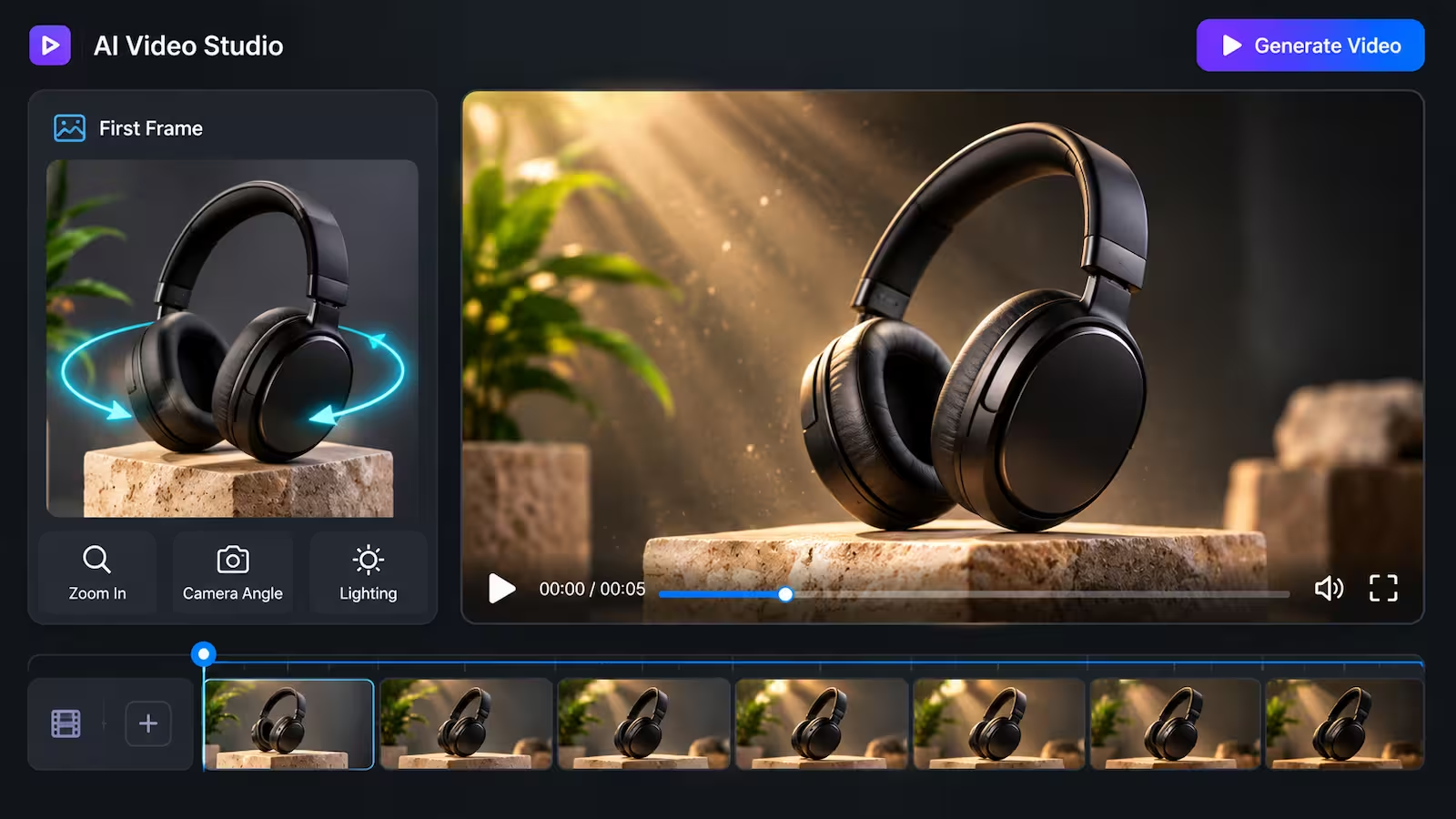
Drop your staged product photo into the First Frame slot. If you want total control over how the shot ends, Firefly also supports a Final Frame upload. For instance, you can upload a front-facing shot of a sneaker as your first frame and a three-quarter angle shot as your final frame—Firefly will smoothly interpolate the camera movement between the two poses. If you skip the final frame, Firefly animates directly from your starting image and prompt.
3. Dial In Camera Controls
Instead of hoping the AI guesses the right lens movement, use Firefly's built-in camera controls—including shot size, shot angle, and motion presets—to guide how the virtual camera moves around your product. Slow push-ins, subtle orbits, and gentle upward tilts work best for keeping product labels readable.
Discover Adobe's suite of products.
Step 3: Write Motion Prompts That Protect Your Product Label
The biggest rookie mistake in AI product video is writing an overloaded prompt. If you ask Firefly to spin the bottle, explode fruit in the background, flash neon lights, and zoom out all at once, the AI will inevitably distort the text on your packaging.
Follow the Rule of Three for every Image-to-Video prompt: one primary subject or environmental motion, one camera move, and one atmospheric lighting detail. Keep your style consistent too—if your photo is photorealistic, describe realistic physical motion.
4 Copy-and-Paste Product Ad Prompt Formulas
Cold Beverages & Cans:
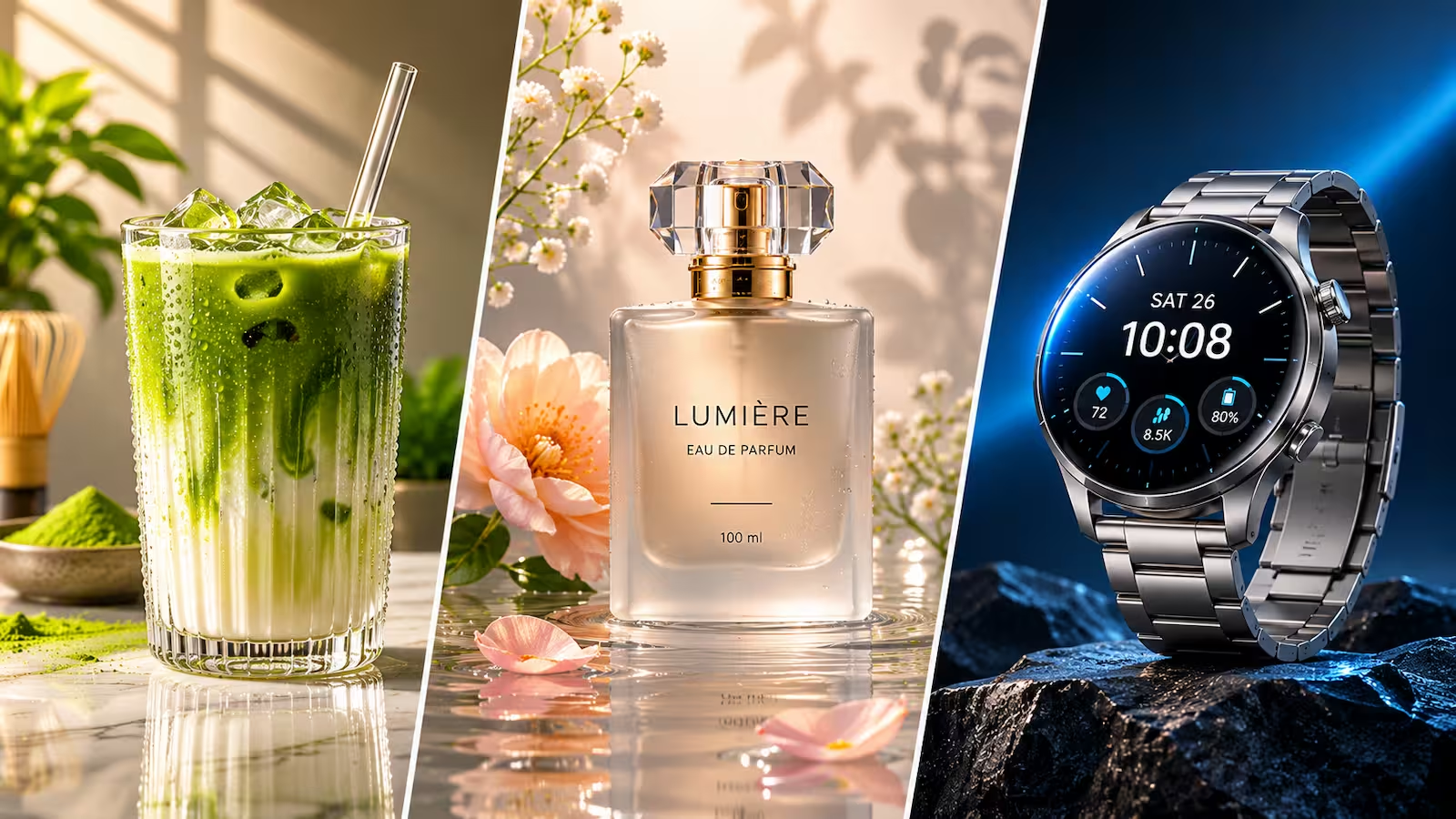
"Slow, smooth cinematic push-in toward the chilled aluminum can. Condensation droplets slowly trickle down the metallic surface while faint mist rises from the ice below. Warm golden-hour sunlight glints off the rim, shallow depth of field, photorealistic commercial cinematography."
Skincare & Cosmetics:
"Gentle parallax camera glide from left to right. Soft morning window light ripples across the glass dropper bottle as delicate water ripples shimmer on the surface beneath it. Clean, airy studio atmosphere, crisp focus on the bottle."
Tech & Consumer Electronics:
"Subtle, controlled camera orbit around the smartwatch resting on a dark brushed-metal desk. A soft cool-blue rim light sweeps smoothly across the curved glass screen and aluminum bezel. High-contrast studio lighting, ultra-sharp commercial shot."
Coffee, Candles & Lifestyle Goods:
"Locked-off medium close-up with a barely perceptible slow zoom in. Wisps of warm aromatic steam curl gently upward from the ceramic mug while soft fireplace light flickers subtly in the out-of-focus background. Cozy, natural film grain."
Pro Tip: Change only one phrase at a time when iterating. If the motion feels too fast, swap "dynamic orbit" for "subtle, slow push-in" rather than rewriting the entire prompt from scratch.
Discover Adobe's suite of products.
Step 4: Add Sound, Voiceover, and Call-to-Action Overlays
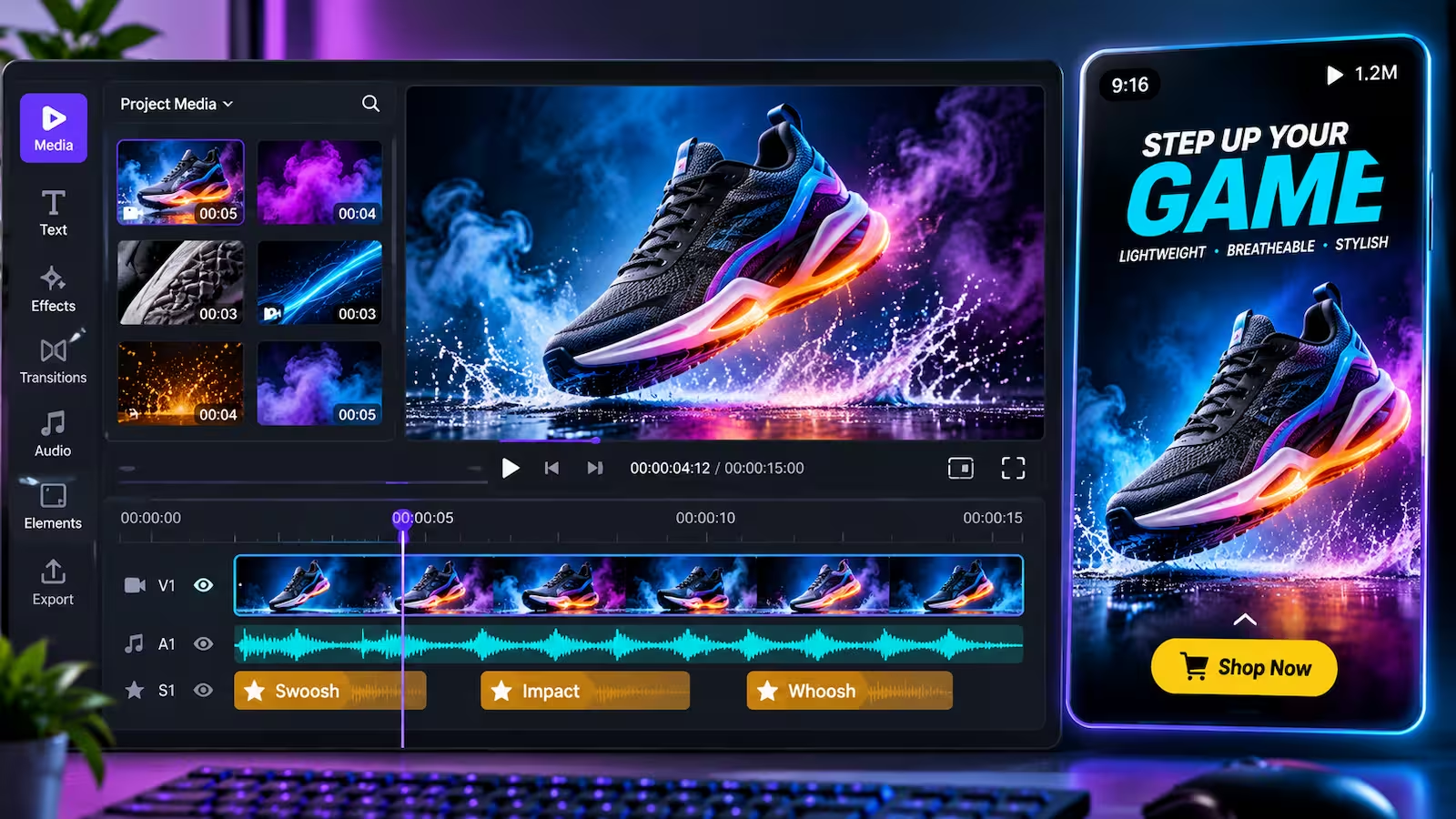
A five-second animated clip is a great asset, but a real video ad needs sound design, pacing, and a clear call to action. Because Image-to-Video clips generate silently, you can finish the entire spot inside Firefly's connected toolkit:
Generate Custom Music & SFX: Open Generate Soundtrack to build royalty-free background music matched to your ad's tempo and mood, then layer subtle foley—like fizzing bubbles, a soft whoosh, or ambient room tone—with Generate Sound Effects.
Add an AI Voiceover (or Localize It): Use Text to Speech to generate a clean voiceover hook ("Upgrade your morning routine in thirty seconds"). If you sell internationally, Firefly's Translate Video feature can dub your ad into multiple languages while preserving the original vocal tone and lip/timing sync.
Assemble and Add Typography: Drop your generated clips and audio tracks into the Firefly Video Editor to trim the pacing. For bold animated price tags, discount badges, and end-card logos, send the exported MP4 into Adobe Express (for fast social templates) or Premiere Pro (if you want custom keyframed motion graphics and precise Lumetri color matching).
Discover Adobe's suite of products.
Quick Troubleshooting Guide for AI Product Videos
Even with a great starting image, AI video generation can occasionally throw a curveball. Use this quick reference table to fix the most common issues before burning extra credits:
Common Issue | Why It Happens | Quick Fix |
Product logo or text warps | Camera movement is too aggressive or the prompt asks for multiple simultaneous actions. | Switch to a gentle slow push-in or locked-off camera preset and reduce prompt motion to subtle background/lighting changes. |
Flickering or morphing background | Conflicting style keywords (e.g., uploading a photo but prompting for "3D render" or "illustrated"). | Match your prompt style strictly to your source image (use "photorealistic" for photos) and clean up busy background clutter first. |
Edges get cut off on TikTok/Reels | Generating in default 16:9 and cropping afterward. | Select 9:16 in the aspect ratio settings before generating, or expand your source photo vertically in Photoshop first. |
Clip feels too short for a full ad | Single generations run a few seconds long. | Generate 2–3 camera angles (wide establishing shot, close-up texture shot, top-down shot) and stitch them together in Firefly Video Editor or Premiere Pro. |