ai video editors
Best AI Video Editors: Compare Editing Tools, Pricing and Watermark Limits
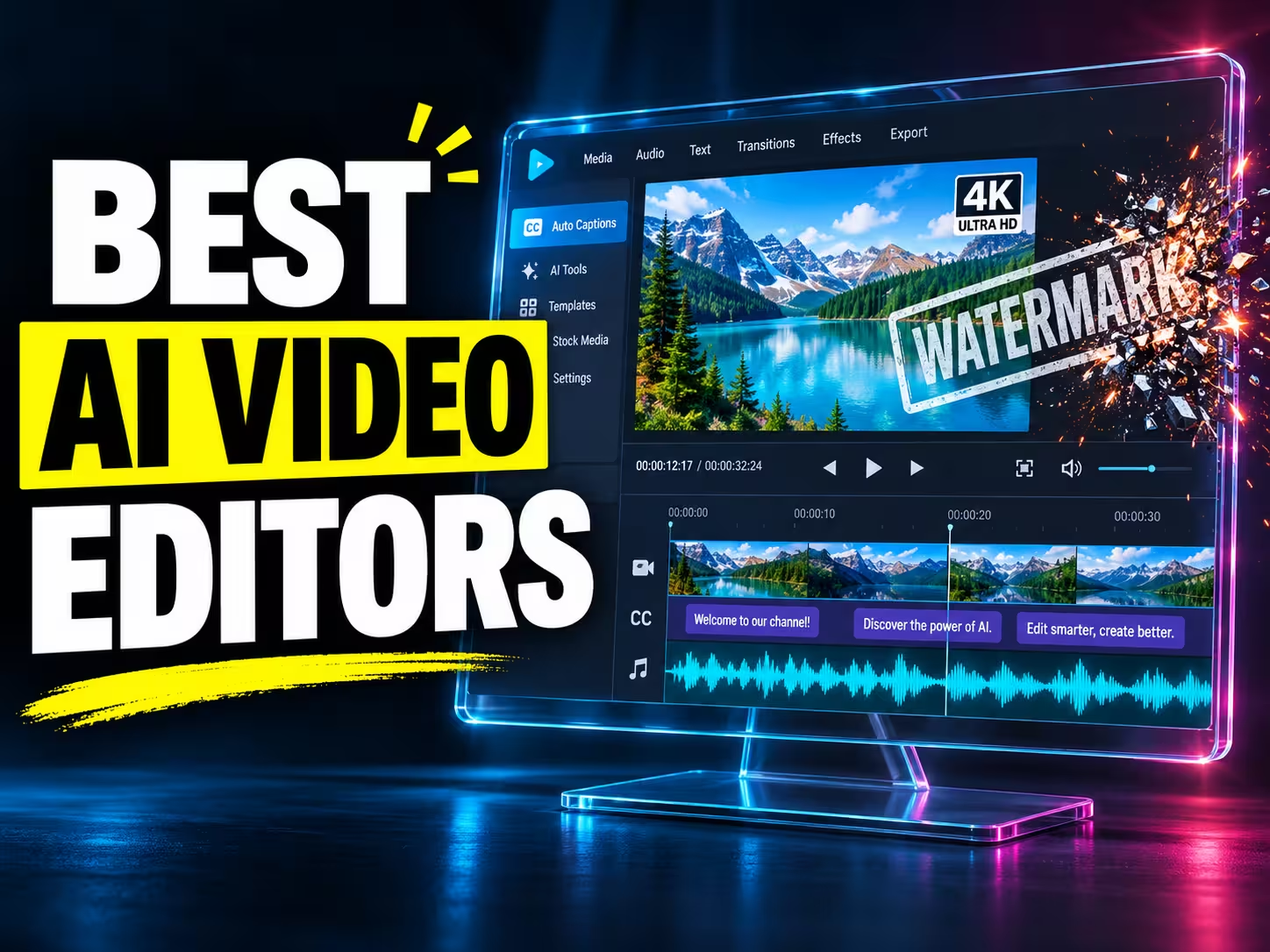
Nothing kills creative momentum faster than spending an afternoon dialing in your cuts, timing your captions, and cleaning up your audio—only to hit Export and get smacked with a giant corner logo, a
AI video editors have made post-production dramatically faster, turning hours of timeline scrubbing into simple text edits, one-click silence removal, and prompt-driven scene generation. Yet almost every platform hides its real cost behind two levers: monthly credit ceilings and free-tier watermark traps. A tool advertised as "free" might let you cut an entire video without paying a dime, or it might lock your finished file behind a $24 monthly subscription the moment you drag in a single premium caption style.
Some of our links may be affiliate links and if you buy through our link, we might generate some commissions.
Below is an honest, side-by-side breakdown of the top AI video editors—covering how their tools actually work, what their paid tiers cost, and exactly where their watermark limits kick in.
Discover Adobe's suite of products.
Stop Comparing Apples to Oranges: The 4 Types of AI Editors
Before comparing prices, figure out what job you actually need AI to do. Most creators waste money because they subscribe to a generative AI studio when they really needed a fast transcript cutter, or vice versa. Nearly every AI video editor fits into one of four categories:
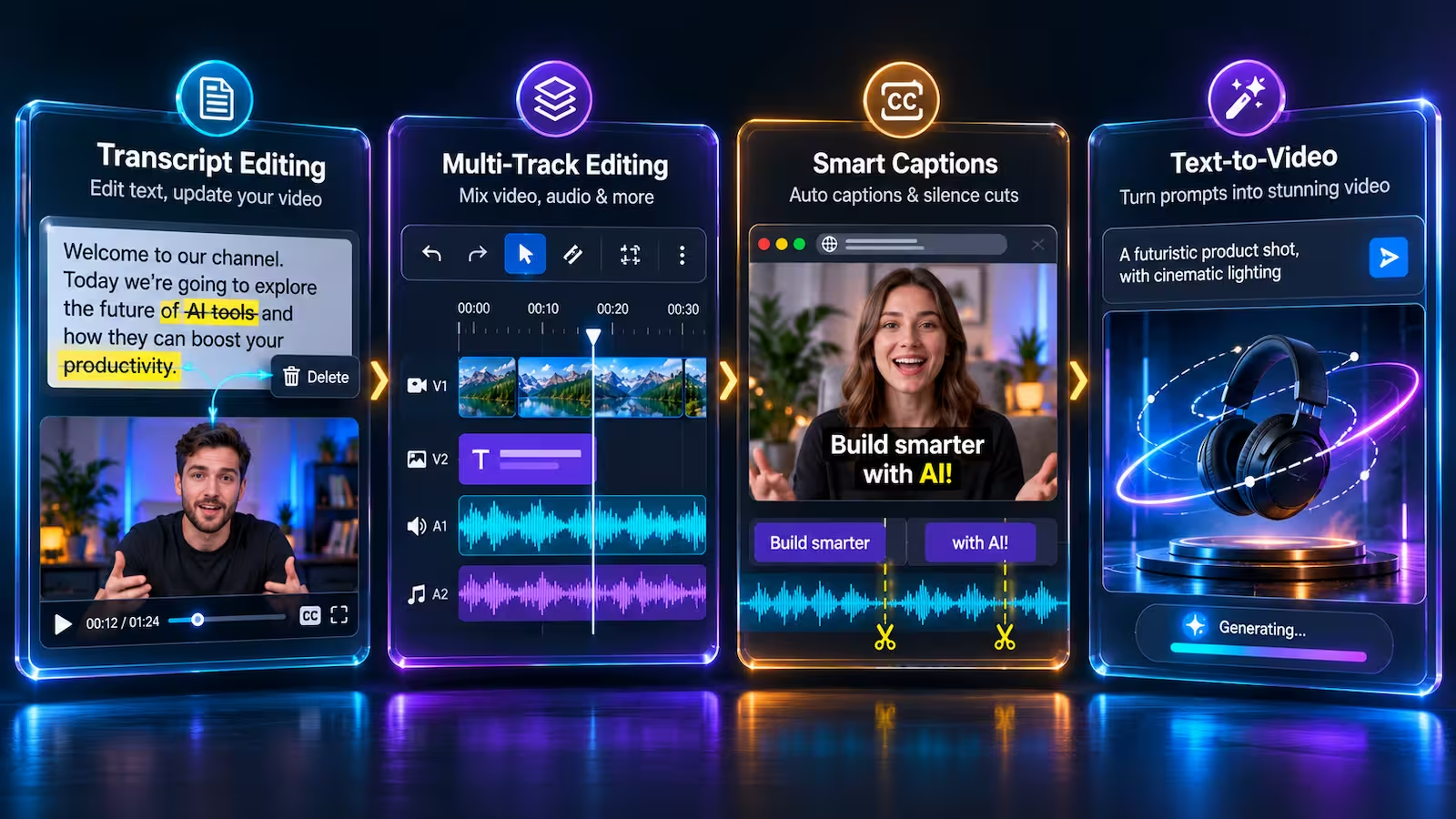
Transcript-First Editors (Descript): You upload talking-head footage or a podcast, edit the written text like a Word document, and the video cuts itself automatically.
Timeline Editors With AI Superpowers (Adobe Premiere Pro, CapCut, DaVinci Resolve): You keep full manual control over tracks and pacing, while AI handles tedious chores like captions, audio cleanup, reframing, and clip extension.
Browser-Based All-in-One Suites (Kapwing, VEED, Clipchamp): Built for speed, social teams, and quick subtitling directly in Chrome without bogging down your hard drive.
Generative & Repurposing Specialists (Runway, Opus Clip): Purpose-built engines that either generate and restyle shots with AI models or slice long recordings into dozens of captioned vertical clips automatically.
The Best AI Video Editors Reviewed
1. Descript — Best for Podcasts, Interviews, and Talking-Head Videos
If your videos revolve around someone speaking to a camera or microphone, Descript still feels like magic. Instead of hunting for pauses on a cramped waveform, you delete filler words, tighten awkward silences, and rearrange entire talking points straight from the transcript. Its AI co-editor, Underlord, handles prompt-based cleanup, while built-in tools like Studio Sound, Eye Contact, and Green Screen rescue rough home-office recordings.
Pricing: The Free plan gives you 60 media minutes per month and 100 one-time AI credits. Hobbyist starts at $16/month billed annually ($24 month-to-month) for 10 media hours and 400 monthly AI credits. Creator runs $24/month annually ($35 monthly) for 30 media hours, 800 AI credits, and 4K exports, while Business is $50/month annually ($65 monthly).
Watermark Limit: Free exports are restricted to 720p with a watermark. Upgrading to Hobbyist removes the watermark at 1080p, and Creator unlocks clean 4K exports.
2. CapCut — Best for High-Speed Short-Form Social Content
For TikTok, Instagram Reels, and YouTube Shorts, CapCut remains the fastest path from raw phone clip to scroll-stopping upload. You get a responsive multi-track timeline paired with trend-ready templates, auto-captions, voiceovers, and AI effects across desktop, web, and mobile.
Pricing: The Free tier includes full manual timeline editing and basic AI tools. Standard sits at $9.99/month (primarily unlocking watermark-free mobile exports and extra templates at 1080p). Pro costs $19.99/month or $179.99/year (~$15/month) on the web, adding 4K/HDR export, 1 TB of cloud storage, and 1,200 monthly AI credits. Heavy generative users can jump to Ultra at $79/month for 8,645 monthly AI credits. (Note: checkout rates vary by region and app store, and subscribing via web typically avoids app-store markups.)
Watermark Limit: Here is the nuance most people miss—CapCut's free tier actually allows watermark-free 1080p exports (the default outro tag can be deleted), provided you steer clear of Pro-badged templates, transitions, and AI clips. Drop a single Pro sticker onto your timeline, however, and CapCut blocks clean exporting until you pay.
3. Adobe Premiere Pro — Best for Agencies, Clients, and Heavy Workflows
Premiere Pro isn't an "auto-pilot" AI gimmick—it is a broadcast-grade timeline editor that embeds practical AI where pros lose the most hours. Between transcript editing, AI audio cleanup, and built-in generative tools, you get precision control alongside smooth handoffs to Photoshop and After Effects.
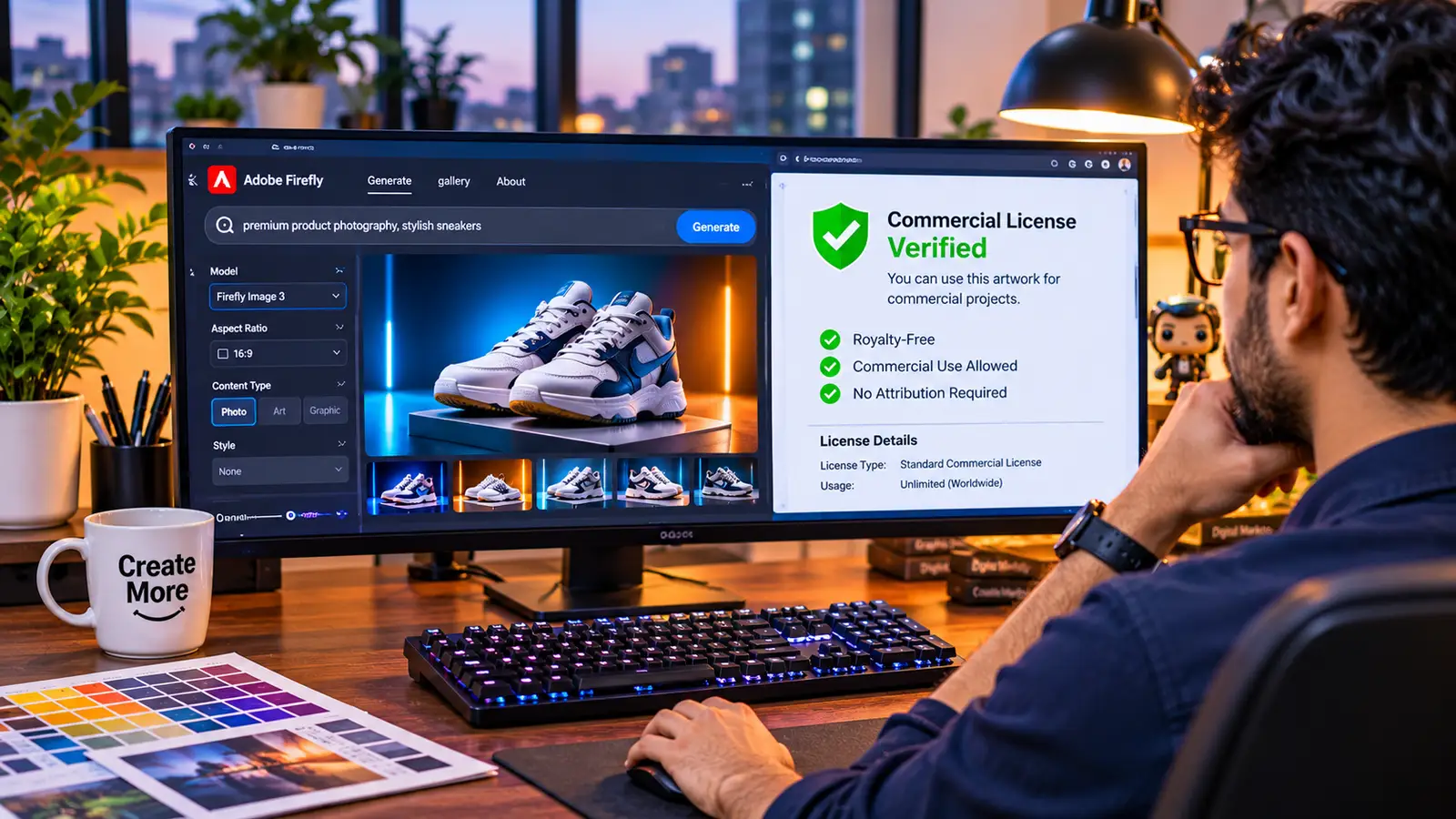
Pricing: The single-app subscription costs $22.99/month on an annual plan (or $263.88/year paid upfront), with a flexible $34.49/month no-commitment option after a 7-day trial. Watch the credit fine print: single-app plans include just 25 monthly generative credits, so frequent AI clip generation requires a Firefly add-on or Creative Cloud Pro.
Watermark Limit: Zero watermarks on paid desktop plans. Even better, Adobe's free Premiere mobile app (iOS and Android) supports watermark-free 4K exports.
Discover Adobe's suite of products.
4. Runway — Best for Generative Video, VFX, and Visual Restyling
When you don't have the footage you need—or you want to transform existing shots into entirely new visual styles—Runway leads the pack. Rather than acting as a conventional podcast cutter, Runway serves as a creative AI studio housing proprietary models like Gen-4.5 alongside partner video models and 4K upscaling.
Pricing: The Free plan gives you 125 one-time credits that never refresh (and free accounts cannot buy top-ups). Standard starts at $12/month billed annually ($15 monthly) for 625 monthly credits and 4K upscaling. Pro runs $28/month annually ($35 monthly) for 2,250 credits, while Max costs $76/month annually ($95 monthly) for 9,500 credits—replacing Runway's retired Unlimited tier for new subscribers.
Watermark Limit: Every video generated on Runway's Free plan carries a Runway watermark. Upgrading to Standard removes the watermark completely.
5. Kapwing & VEED — Best for Browser-Based Teams and Fast Subtitles
If you work on a lightweight laptop or collaborate with marketing teammates who refuse to install heavy desktop software, Kapwing and VEED bring AI editing straight to the browser. Kapwing packs in Smart Cut (automatic silence removal), Clean Audio, one-click background removal, AI B-roll generation, and subtitle translation across 60+ languages.
Pricing: Kapwing's Free tier includes 10 credits and up to 10 minutes of auto-subtitling. Pro costs $16/month per member billed annually ($24 monthly) with 1,000 monthly credits and 4K exports, while Business is $50/month annually for 4,000 credits. VEED's paid plans start around $25/month, though its tier structure has shifted recently, so verify current rates on its pricing page before subscribing.
Watermark Limit: Both tools enforce strict free-tier gates. Kapwing Free stamps a watermark on every export, caps resolution at 720p, and limits video length to 4 minutes. VEED's free plan likewise applies a watermark and a 720p ceiling.
6. Opus Clip — Best for Turning Long Videos Into Viral Shorts
Opus Clip does one job exceptionally well: drop in a 60-minute interview or webinar, and its AI identifies high-retention hooks, reframes the speaker vertically, and outputs ready-to-post short clips with dynamic captions.
Pricing: A limited Free plan lets you test the clipping engine. Starter begins at $15/month (monthly billing), while Pro runs $14.50/month billed annually ($29 month-to-month) and unlocks 4K downloads.
Watermark Limit: Free clips export up to 1080p with a watermark. Upgrading to Starter removes the watermark.
Honorable Zero-Watermark Benchmarks: DaVinci Resolve & Clipchamp
If avoiding watermarks without a monthly bill is your top priority, keep two alternatives on your radar:
DaVinci Resolve: The free desktop version has no watermark and exports up to 4K UHD at 60 fps. Upgrading to DaVinci Resolve Studio for advanced AI tools and 8K+ workflows is a $295 one-time purchase—no recurring subscription.
Microsoft Clipchamp: Built right into Windows, its free plan bundles AI captions, silence removal, and text-to-speech voiceovers, with Premium at $11.99/month mainly adding 4K exports and stock libraries.
Discover Adobe's suite of products.
Side-by-Side Comparison: Pricing, Resolution & Watermark Limits
AI Video Editor | Free Tier & Watermark Rule | Entry Paid Price (Annual / Monthly) | Max Resolution (Free → Paid) | Best Fit |
Descript | 60 media mins/mo, 100 one-time AI credits; watermarked | $16/mo annual ($24/mo monthly) | 720p → 1080p (Hobbyist) / 4K (Creator) | Podcasts, interviews, tutorials |
CapCut | Full manual timeline; no watermark unless using Pro assets | $9.99/mo (Standard) / ~$15/mo annual Pro ($19.99/mo) | 1080p → 4K HDR (Pro) | TikTok, Reels, YouTube Shorts |
Adobe Premiere Pro | 7-day desktop trial; free mobile app has no watermark | $22.99/mo annual ($34.49/mo monthly) | 4K mobile → 8K+ desktop | Client work, agencies, pro timelines |
Runway | 125 one-time credits; all free videos watermarked | $12/mo annual ($15/mo monthly) | Standard gen → 4K upscaling | Generative clips, VFX, ad visuals |
Kapwing | 4-min export cap; all free exports watermarked | $16/mo annual ($24/mo monthly) per seat | 720p → 4K | Browser teams & quick subtitles |
Opus Clip | Limited monthly processing; watermarked | $15/mo (Starter) / $14.50/mo annual (Pro) | 1080p → 4K (Pro) | Repurposing long videos into shorts |
DaVinci Resolve | Full NLE & color suite; no watermark | $295 one-time (Studio) | 4K 60fps → 8K+ | Zero-subscription pros & colorists |
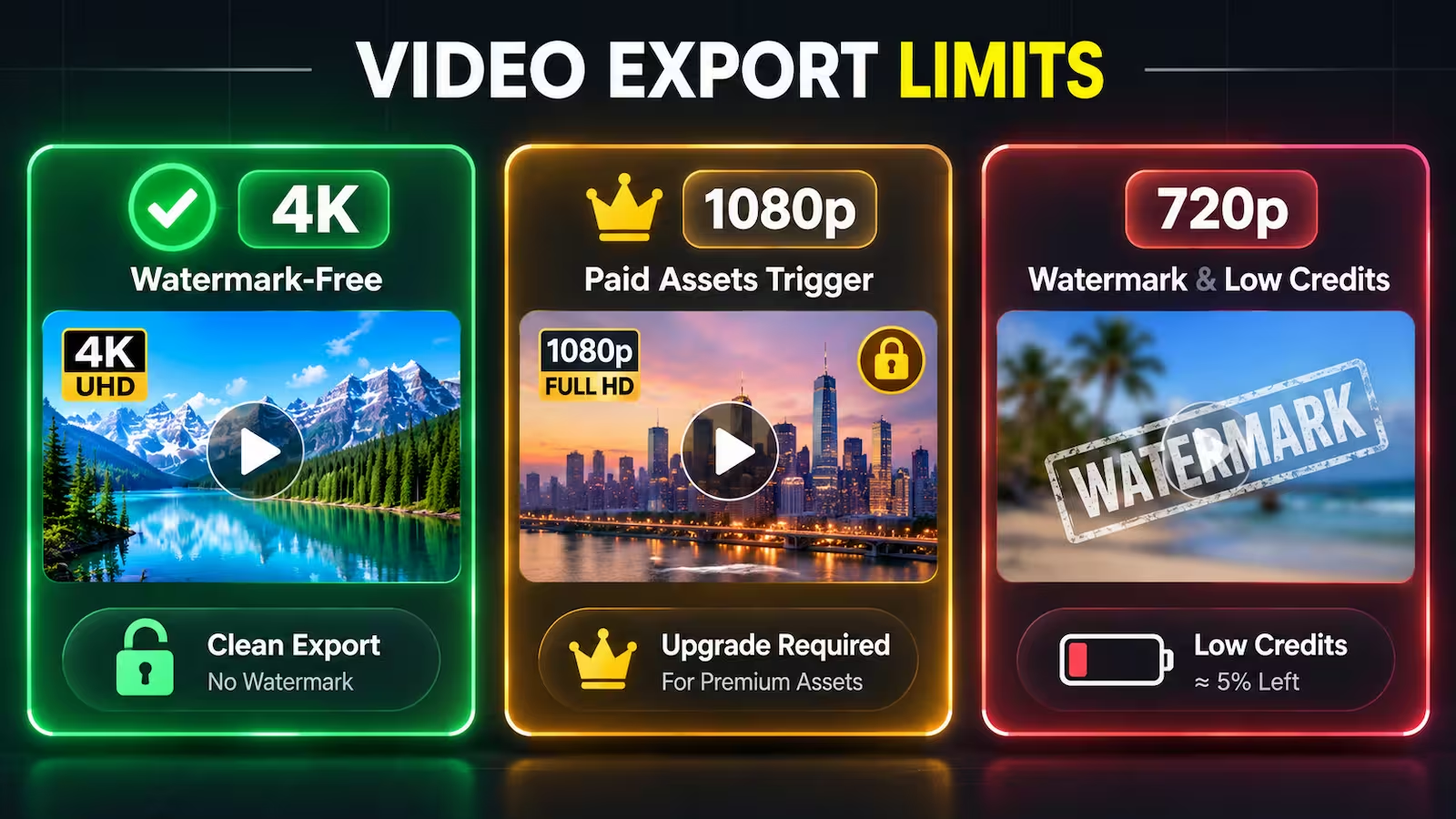
How to Dodge the Watermark & Credit Traps
Monthly sticker prices rarely tell the full story. Before pulling out a credit card, check three details that quietly inflate your real cost:
Watch the "One-Time" Credit Cliff: Both Descript Free (100 AI credits) and Runway Free (125 credits) give you a one-time starter bucket that never refills. Once those credits are gone, your free account is effectively parked until you upgrade.
Audit Your Timeline Before Paying to Remove a Watermark: On CapCut, plenty of creators pay $19.99/month for Pro simply because an export screen demanded an upgrade—when the culprit was a single Pro font or sticker they could have swapped for a free equivalent in thirty seconds.
Understand How Your Tool Bills You: Transcript tools like Descript bill by media hours uploaded, repurposing tools like Opus Clip bill by source video minutes processed, and generative platforms like Runway bill per second of output. If you shoot two hours of raw footage to make one ten-minute YouTube video, a per-minute cloud tool gets expensive fast compared to a flat-rate desktop editor like Premiere Pro or DaVinci Resolve.
Discover Adobe's suite of products.
Which AI Video Editor Should You Actually Choose?
Skip the temptation to subscribe to three overlapping platforms. Match your main bottleneck to one primary tool:
You record podcasts, tutorials, or talking-head YouTube videos: Start with Descript Hobbyist ($16/month annual)—editing dialogue like a text document saves hours every single week.
You publish daily TikToks, Reels, or Shorts on a budget: Use CapCut Free with clean manual templates (or Premiere's free mobile app for watermark-free 4K), and only upgrade to CapCut Pro if you genuinely need 4K exports and weekly AI credits.
You edit client deliverables or multi-camera projects: Stick with Adobe Premiere Pro ($22.99/month annual) for ecosystem speed, or pay $295 once for DaVinci Resolve Studio if you want pro AI masking and voice isolation without a lifelong subscription.
You produce AI B-roll, visual effects, or product commercials: Pair Runway Standard ($12/month annual) with a free timeline editor like DaVinci Resolve so you only spend credits on generative shots.
You run a marketing team collaborating across browsers: Pick Kapwing Pro ($16/month per seat annually) for fast shared workspaces, clean 4K exports, and rapid subtitle localization.
Discover Adobe's suite of products.
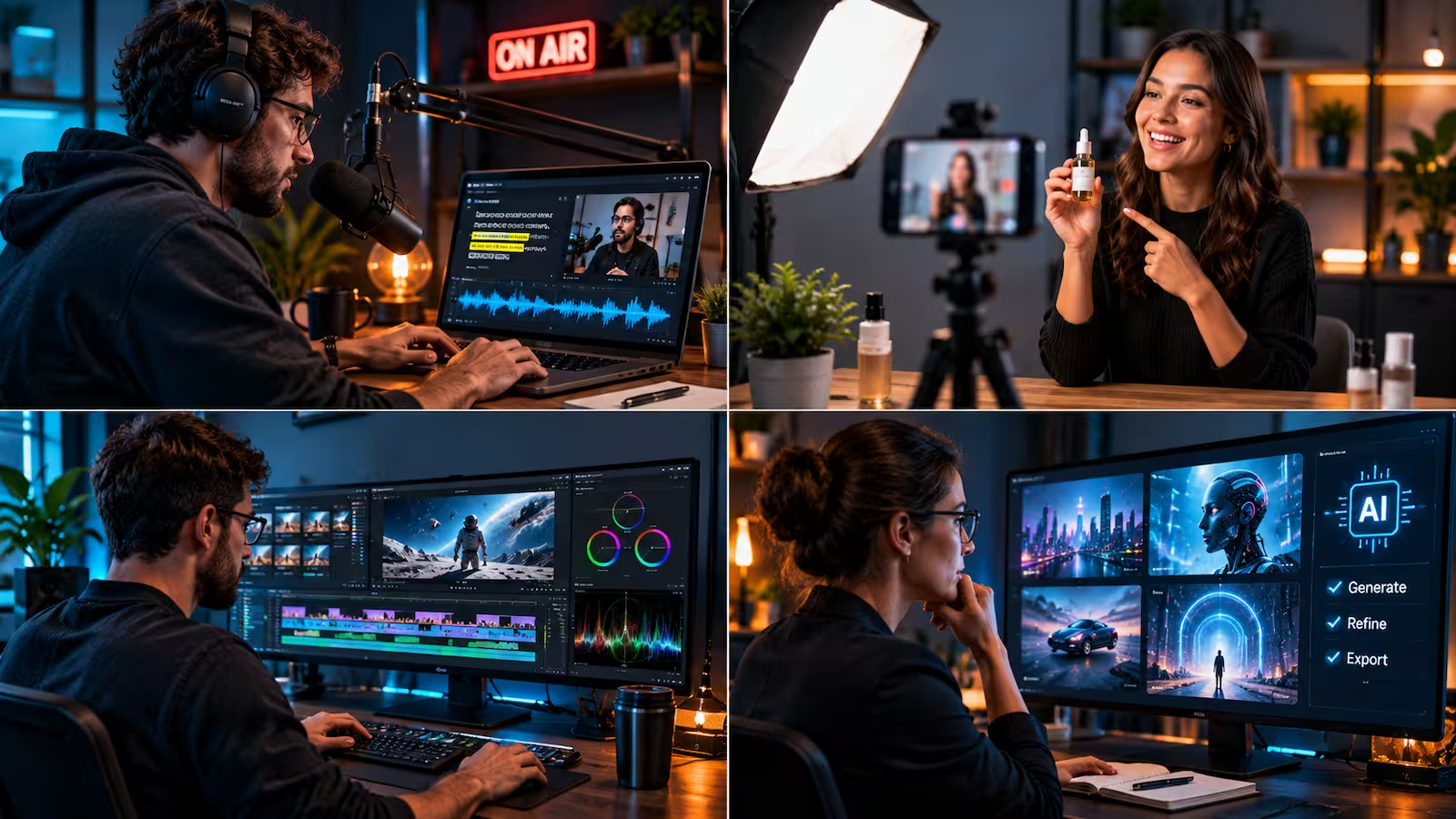
The smartest move before committing to any annual plan is simple: run one real project from raw footage all the way through export on the free tier. That single test will immediately expose whether the watermark rules, resolution caps, and credit burn rate fit your workflow—before a single dollar leaves your account.